
WAVLINK USB 3.0/USB C to HDMI Universal Video Adapter
4.4Editor score
Supports up to six monitors
Built-in microphone and earphone
Compact aluminum design
This guide compares the top Displaylink Adapter options for dual monitors on Mac and Windows, highlighting features like resolution and driver support for
Finding the right Displaylink Adapter can transform your single-screen laptop into a powerful dual-monitor workstation. These devices use advanced technology to bypass native limitations, allowing you to connect external screens via USB or Thunderbolt ports for increased productivity and multitasking efficiency.
We evaluated ten top-rated adapters based on compatibility, video output quality, and ease of setup. Our comparison focuses on how well each unit handles 4K resolution, supports macOS and Windows systems, and integrates with common office peripherals like keyboards and mice for a seamless workspace experience.
Each pick below showcases specific strengths such as port variety, build quality, and driver requirements. Keep in mind that technology evolves quickly, so current performance may vary based on your specific operating system version and hardware configuration when you make your final purchasing decision today.
4.4Editor score

4.5Editor score

4.8Editor score
The following table provides a side-by-side overview of key specifications for each adapter. Use this reference to quickly identify which model matches your laptop port type and display requirements before diving into the detailed reviews.


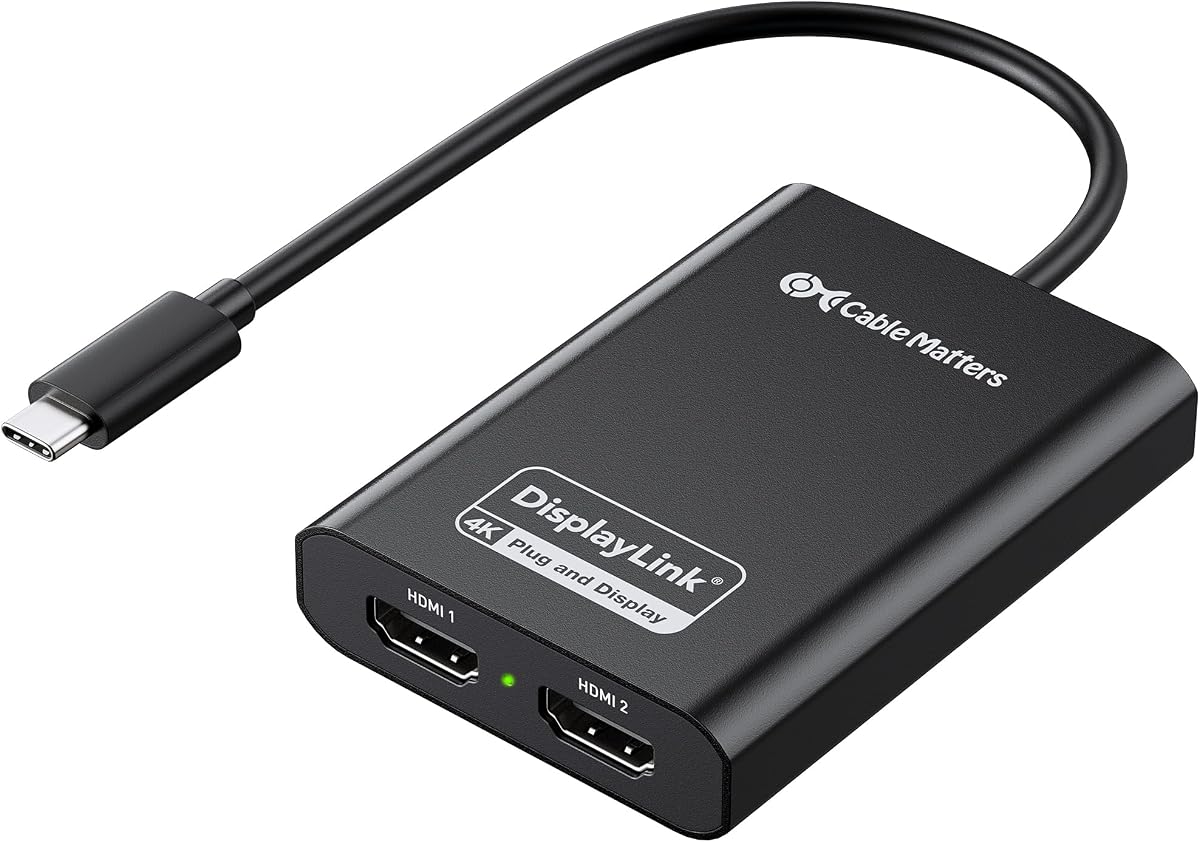

This WAVLINK adapter stands out as a budget-friendly option for users needing basic display expansion. With a solid rating, it offers reliable performance for office tasks and general multitasking without breaking the bank.
We may earn a commission when you buy through this link, at no additional cost to you.
Its standout feature is support for up to six monitors when using multiple adapters on compatible systems. The included microphone and earphone outputs add convenience for voice calls, while LED indicators help verify connection status at a glance.
While it does not support true 4K resolution, it handles 1080p and 1440p well enough for spreadsheets and documents. Linux and ChromeOS compatibility makes it a rare find for non-Windows users seeking an affordable solution.
Ideal for students and remote workers on a tight budget, this adapter delivers essential dual-screen functionality. Just remember you will need one unit per monitor if you want more than two screens total.
Built-in microphone and earphone jacks let you connect headsets directly without extra dongles.
Runs on Windows, macOS, ChromeOS, and even some Linux versions with driver installation.
We may earn a commission when you buy through this link, at no additional cost to you.
This Plugable adapter earns the top spot due to its versatility and reliable dual 4K output. It bridges the gap between older laptops with USB-A ports and modern systems using USB-C without requiring extra cables.
We may earn a commission when you buy through this link, at no additional cost to you.
The integrated USB-A adapter stays attached to the unit, making it simple to switch between computer types. Windows and ChromeOS users enjoy plug-and-play setup, while the DL-6950 chipset ensures stable video transmission.
Though not optimized for macOS, it works well for Windows-based workflows. The main trade-off is the price, which reflects the premium build quality and long-term support commitment from the manufacturer.
Best for IT departments and professionals who need a dependable docking solution across mixed device environments. Its balance of performance and flexibility makes it a standout choice in this category.
Includes an integrated USB-A adapter for older laptops, eliminating the need for separate dongles.
Uses DisplayLink DL-6950 technology for consistent video output without external GPU requirements.
We may earn a commission when you buy through this link, at no additional cost to you.
This ACASIS adapter is designed specifically for Mac users who need powerful display expansion. It delivers dual 4K DisplayPort outputs and includes a 100W charging port, making it a true hub for professional workflows.
We may earn a commission when you buy through this link, at no additional cost to you.
The aluminum housing provides excellent heat dissipation during extended use. Unlike basic splitters, it supports true extended desktop modes, allowing designers and power users to manage multiple windows with ease.
The requirement for DisplayPort cables on HDMI monitors can be inconvenient, but the high quality justifies the extra step. Charging while driving two screens ensures your battery lasts through long work sessions.
Ideal for MacBook Pro and Air owners seeking a premium docking solution. If you have compatible displays and value build quality, this adapter offers the best performance in its class.
100W PD port keeps your laptop charged while simultaneously powering dual external displays.
Designed to bypass Apple single-display limitations on M1 through M5 MacBooks.
We may earn a commission when you buy through this link, at no additional cost to you.
This adapter bridges the gap between modern MacBooks and traditional HDMI monitors. It provides dual 4K outputs and high-speed charging, which is essential for users who need to keep their laptops powered during meetings.
We may earn a commission when you buy through this link, at no additional cost to you.
The aluminum build ensures durability and heat management. Three USB-A ports allow you to connect mice and keyboards directly, reducing clutter on your desk. Driver installation is straightforward and included in the package.
It is not suitable for gaming or protected content streaming, but that is standard for DisplayLink tech. Office users will appreciate the ability to extend their workspace with high-resolution clarity.
Perfect for Mac users who want HDMI outputs without extra dongles. Its combination of charging and video expansion makes it a versatile tool for daily productivity tasks.
Maintains battery life while driving two external screens via a single USB-C connection.
Includes three USB-A ports for connecting essential office accessories without extra adapters.
We may earn a commission when you buy through this link, at no additional cost to you.
This Plugable model is designed for hybrid offices where reliability is key. It adds two external monitors to MacBook M1-M5 models, which normally support only one external display. Recognition from MacWorld adds to its credibility.
We may earn a commission when you buy through this link, at no additional cost to you.
Setup involves installing the DisplayLink Manager app on macOS, but it remains stable once configured. Windows users benefit from plug-and-play functionality. The focus on productivity tools ensures smooth performance for coding and spreadsheets.
Streaming protected content is restricted due to HDCP limitations, which is typical for this technology. However, for professional applications, the adapter delivers consistent 60Hz refresh rates without flicker.
Ideal for corporate environments or power users needing multiple screens on a Mac. Its focus on stability and support makes it a trusted choice for business deployments.
Awarded Best DisplayLink Adapter for MacBook Neo, validating its performance on Apple devices.
Optimized for office apps like Excel and coding IDEs rather than media consumption.
We may earn a commission when you buy through this link, at no additional cost to you.
This adapter simplifies connectivity with a hybrid cable that works with both USB-A and USB-C ports. It supports Thunderbolt 3 and 4, ensuring it works with modern laptops and older machines alike.
We may earn a commission when you buy through this link, at no additional cost to you.
Dual 4K displays run at 60Hz for smooth visuals. The unit comes with a 12-month warranty and extended options for members, adding peace of mind for buyers. Driver installation is straightforward for Windows and macOS users.
Linux users are not supported, which limits its audience compared to other models. However, for Windows and Mac users needing high resolution, it provides excellent value and performance.
Great for users with mixed device types who want one adapter for all. The hybrid cable reduces the need for separate adapters, streamlining your workspace setup.
Single cable connects to USB-A or USB-C, adapting to your laptop ports automatically.
Standard 12-month warranty extends by six months if registered online.
We may earn a commission when you buy through this link, at no additional cost to you.
This StarTech mini dock is unique for including a Gigabit Ethernet port alongside video outputs. It is perfect for laptops without Ethernet jacks that need a stable wired network connection for security.
We may earn a commission when you buy through this link, at no additional cost to you.
The dual DisplayPort outputs allow for high-resolution setups, though you may need adapters for HDMI monitors. Its small size makes it ideal for travel or tight desk spaces where larger hubs won't fit.
TAA compliance means it meets certain government procurement standards, which is useful for enterprise buyers. It works well with ChromeOS and Windows, offering reliable performance for business use.
Best for professionals who need both video and network expansion via a single USB-A port. Its compact design ensures it travels easily without adding bulk to your bag.
Built-in GbE port replaces the need for a separate network adapter.
TAA compliant for use in federal and government procurement contracts.
We may earn a commission when you buy through this link, at no additional cost to you.
This adapter stands out for its enhanced security features with DL-Chip encryption. It protects data during transmission, which is valuable for corporate environments handling sensitive information on dual screens.
We may earn a commission when you buy through this link, at no additional cost to you.
Performance is strong with dual 4K support, making it suitable for financial analysis and data visualization. Support includes Windows, macOS, and ChromeOS, though Linux is excluded from compatibility lists.
The company offers 24/7 support via phone and email, ensuring quick resolution if issues arise. This responsiveness adds value for business buyers who cannot afford downtime.
Ideal for companies prioritizing security alongside display performance. It balances encryption technology with standard productivity features to meet enterprise needs.
DL-Chip technology safeguards data transmission against unauthorized access during video output.
24/7 technical support via phone and email ensures rapid issue resolution.
We may earn a commission when you buy through this link, at no additional cost to you.
Certification by DisplayLink ensures this adapter meets strict performance standards. It delivers dual extended displays on macOS, allowing M1 and M2 users to break single-screen limits effectively.
We may earn a commission when you buy through this link, at no additional cost to you.
The aluminum housing dissipates heat efficiently during use. While you need a relatively recent CPU for best performance, the adapter works well with most modern laptops from Dell, HP, and Lenovo.
HDMI 2.0 ensures stable 60Hz refresh rates for dual 4K screens. Users should note that macOS requires Screen Recording permission to function, which can be slightly confusing initially.
Best for users who want certified reliability over third-party claims. It offers a dependable solution for expanding workspaces on both Mac and Windows machines.
DisplayLink certification guarantees compatibility with official DisplayLink driver requirements.
Mac users must allow Screen Recording permissions in system settings for proper function.
We may earn a commission when you buy through this link, at no additional cost to you.
This adapter supports refresh rates up to 144Hz, which is rare for DisplayLink adapters. It is perfect for users who need smoother motion for dashboards or scrolling content.
We may earn a commission when you buy through this link, at no additional cost to you.
Audio is supported, allowing sound output to connected displays. It includes a USB-A to USB-C adapter to ensure flexibility across different laptop generations. Sonnet is known for high-quality macOS hardware.
The price is on the higher side, but the high refresh rate support justifies the cost for specific use cases. Driver setup is standard, requiring the DisplayLink Manager on macOS.
Ideal for users who want fluid motion and high-quality connections. It bridges the gap between productivity and higher performance display needs.
Supports up to 144Hz for smoother scrolling and more responsive UI elements.
Includes audio support to route sound directly to external monitors.
We may earn a commission when you buy through this link, at no additional cost to you.
Selecting the right adapter requires understanding your laptop's capabilities and your display needs. Use these factors to narrow down options that fit your workflow and budget.
Check if the adapter supports your OS natively. Some adapters work best with Windows or ChromeOS, while others offer specific drivers for macOS. Linux support is often limited.
Confirm your operating system is listed in the product specs before purchasing.
Adapters may output via HDMI or DisplayPort. Ensure your monitors match the connector type or that you have the correct cables. HDMI is more common for general use.
Choose an adapter with the port type your monitors already support to avoid extra cables.
Most adapters support up to 4K at 60Hz, which is ideal for productivity. Some units offer higher refresh rates for smoother visuals. Verify the maximum resolution your laptop can drive through USB.
Prioritize 4K at 60Hz support for sharp and fluid display performance.
Many adapters include USB-C Power Delivery to charge your laptop while in use. This reduces cable clutter and keeps your battery topped up. Check the wattage output to ensure it matches your laptop's needs.
Look for adapters with 60W or higher charging for reliable power delivery.
DisplayLink technology usually requires installing a driver on your computer. Ensure you are comfortable with basic software installation. Some operating systems like ChromeOS support plug-and-play setups.
Verify driver installation steps before buying to avoid setup issues.
Check how many USB-A or USB-C ports are needed. Some adapters consume one port but offer more downstream connections. Ensure your laptop has enough available bandwidth to drive multiple screens.
Select an adapter that matches your available USB ports and bandwidth.
Aluminum housings provide better heat dissipation than plastic. Durable construction ensures longevity during daily use. Consider portable models if you travel frequently between workspaces.
Choose aluminum builds for better heat management and durability.
Reputable brands offer extended warranties and technical support. This is crucial for IT departments or remote workers. Check if lifetime support is included with the purchase.
Prioritize products with strong warranty and support options for peace of mind.
Begin by downloading and installing the DisplayLink driver from the official website before connecting the hardware. This ensures your system recognizes the adapter correctly and prevents conflicts.
Plug the adapter into a high-speed USB port and connect your monitors via HDMI or DisplayPort cables. Arrange your desktop settings in system preferences to extend rather than mirror your screens.
Keep the adapter in a cool, dry place when not in use to maintain its longevity. Avoid forcing cables into ports and check for dust in connectors periodically to ensure stable connections.
Yes, DisplayLink adapters work on M1 MacBooks by bypassing the native single external display limit. However, you must install the DisplayLink Manager app and grant Screen Recording permissions for them to function properly.
DisplayLink adapters are generally not recommended for gaming. They rely on CPU rendering which can cause lag. They are optimized for productivity tasks like spreadsheets, web browsing, and coding instead of high-speed motion.
Drivers enable your computer to process video data through USB channels. Since USB was not originally designed for video, the driver compresses the video stream to transmit it effectively. Most adapters come with installation instructions to help with this step.
Most modern adapters transmit audio to your monitors if they support HDMI. However, some models only handle video. Check the product details to confirm audio support if you plan to use your monitor speakers.
Linux support is limited compared to Windows or macOS. Some adapters work with specific distributions and versions of Linux, but full functionality is not guaranteed. Check with the manufacturer for specific Linux compatibility before buying.
DisplayLink does not support HDCP-protected content like Netflix or Prime Video. This means streaming sites may not play or will show black screens on the external monitors. It works fine for regular video content and desktop apps.
Most adapters connect two external screens, though some support up to six. The total number of screens depends on your laptop's USB ports and driver capabilities. Each monitor typically requires its own adapter connection.
The maximum resolution is usually 4K at 60Hz for most modern adapters. This ensures sharp text and smooth visuals for daily tasks. Confirm the specific resolution limits in the product specs before purchasing.
We have explored ten top Displaylink Adapter options for November 2026. The Plugable USB-C & USB-A Dual 4K HDMI Adapter stands out as our top pick due to its reliability and versatile connectivity.
If you are on a budget, the WAVLINK USB 3.0/USB C to HDMI Universal Video Adapter offers excellent value. For Mac users needing premium features, the ACASIS Dual DP DisplayLink Adapter delivers powerful performance.
Remember that prices and stock can change quickly. Always check current availability and verify driver compatibility with your system before making your final purchase.