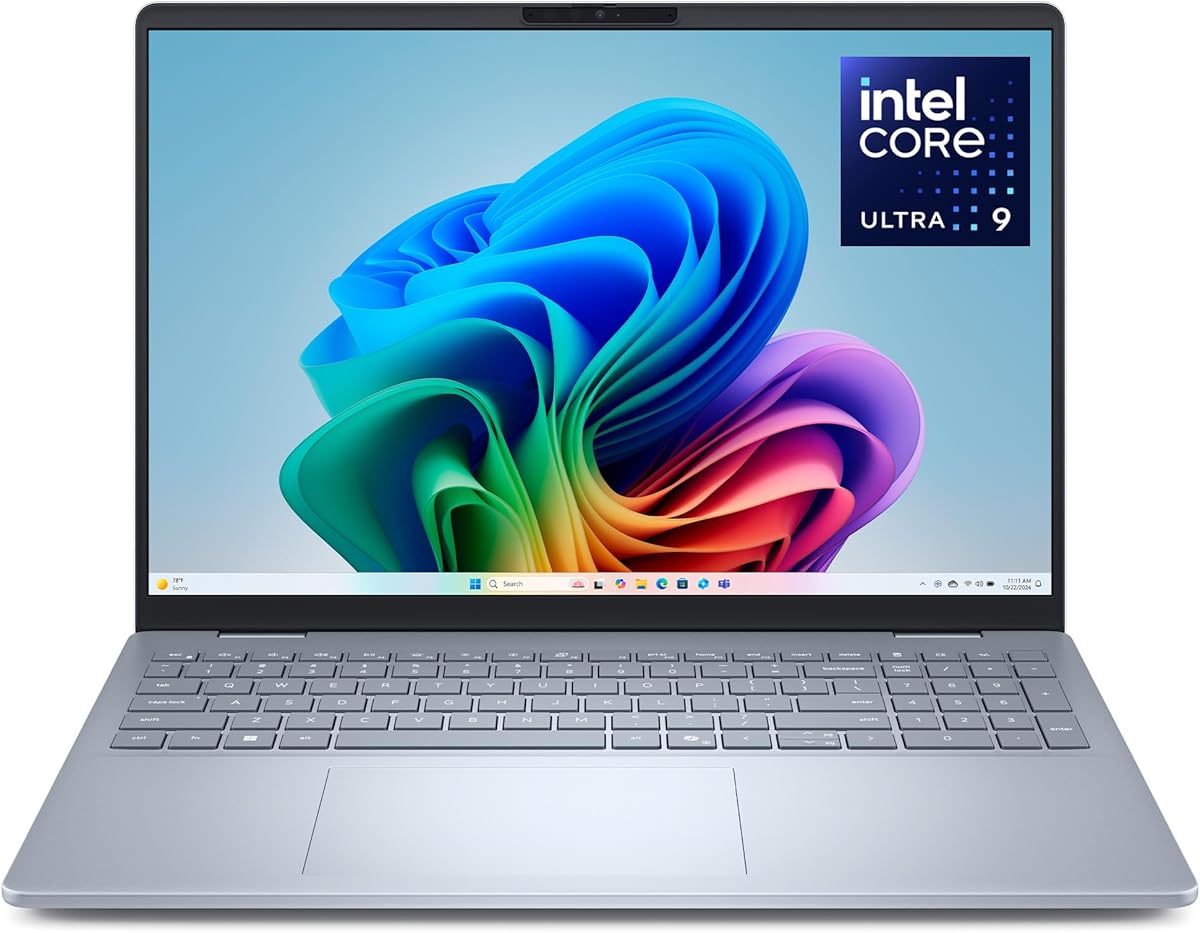
Dell 16 Plus Laptop QHD+
4.3Editor score
Intel Core Ultra 9 288V
32GB RAM
QHD+ 16:10 screen
Choosing the right laptop for Lightroom Classic is essential for photographers who need speed, color accuracy, and portability. This guide helps you navigate the options available today.
We evaluated ten real products based on processor power, memory capacity, screen quality, and overall value. Each selection aims to handle photo editing workflows efficiently.
Every pick includes detailed specs, pros, and cons to help you decide. Remember that prices and availability can change frequently so check current listings before buying.
4.3Editor score
4.3Editor score

5.0Editor score
As an Amazon Associate we earn from qualifying purchases.
This side-by-side comparison highlights the key specifications of all ten laptops reviewed. It helps you quickly identify which model fits your editing needs and budget constraints.



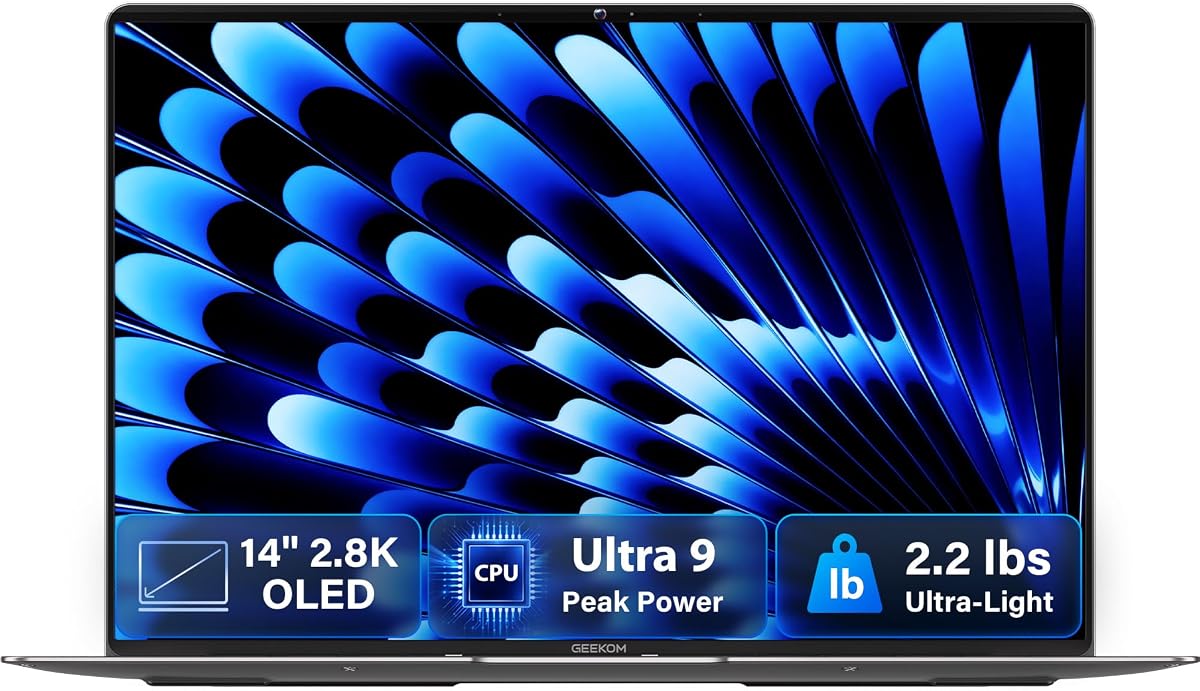
The GEEKOM GeekBook X14 Pro stands out with a 2.8K OLED display and powerful Intel Core Ultra 9 processor. It earns a solid 4.3 rating from users who appreciate its performance.
We may earn a commission when you buy through this link, at no additional cost to you.
Its 100% DCI-P3 coverage makes color grading in Lightroom Classic precise. The 32GB of RAM ensures smooth multitasking even with large catalogues open.
While the price is higher than some competitors the build quality and screen make it worth the investment. The thermal system keeps fans quiet during editing.
Photographers needing a portable yet powerful machine will find this laptop ideal. It balances screen fidelity with processing speed effectively.
The OLED screen provides deep blacks and vibrant colors essential for photo editing workflows.
Dedicated NPU enhances performance for AI driven tasks like noise reduction and object selection.
We may earn a commission when you buy through this link, at no additional cost to you.
This laptop offers a generous 17-inch screen that helps with detailed retouching. It has a 4.3 rating for its portability despite the large size.
We may earn a commission when you buy through this link, at no additional cost to you.
The IPS panel covers 99% DCI-P3 which is suitable for Lightroom work. The laptop weighs very little for a 17-inch model.
However the 11th gen processor might feel slower than newer AI chips. The 16GB RAM is sufficient but not future proof.
It is a great choice if you need screen real estate without carrying a heavy machine. Ideal for editing on the go.
A larger screen allows for better visibility of histograms and detail during editing sessions.
Despite the 17-inch dimensions the laptop remains incredibly light for travel.
We may earn a commission when you buy through this link, at no additional cost to you.
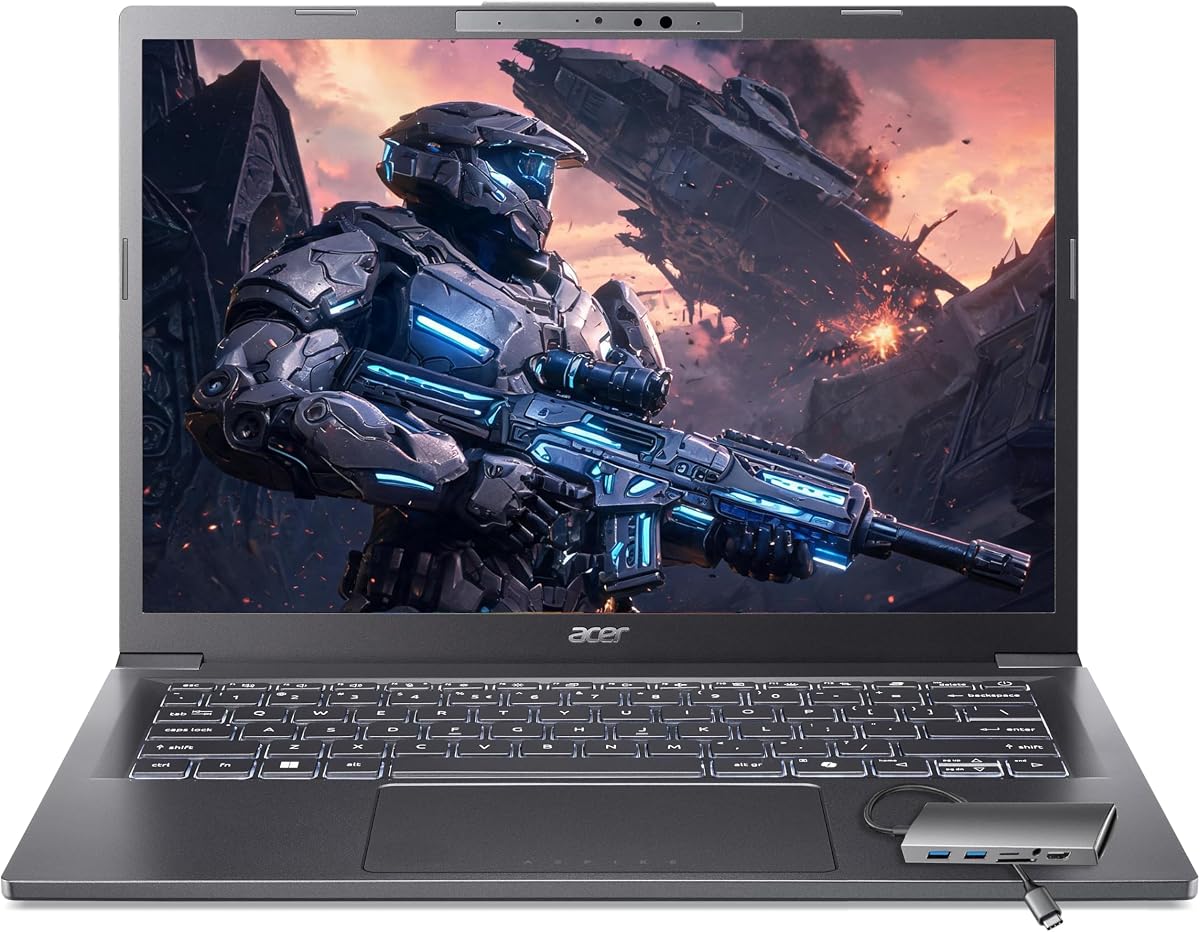
The Acer Aspire stands out with a touchscreen that simplifies zooming and adjusting sliders in Lightroom. It holds a high 4.8 rating.
We may earn a commission when you buy through this link, at no additional cost to you.
With 32GB of RAM and 2TB of storage it handles large libraries effortlessly. The Intel Ultra 7 processor provides strong AI acceleration.
Some users prefer avoiding touch screens to reduce glare but the convenience is high for direct manipulation. The build is solid.
This model is perfect for creators who want direct interaction with their images. It offers great value for the specs.
Direct touch control makes navigating catalogs and adjusting tools faster and more natural.
2TB of space ensures you can keep years of photos without external drives.
We may earn a commission when you buy through this link, at no additional cost to you.
This NIMO laptop offers excellent value for students or beginners entering photography. It has a perfect 5.0 rating for reliability.
We may earn a commission when you buy through this link, at no additional cost to you.
The AMD Ryzen 5 processor handles basic edits smoothly. The 16GB RAM is sufficient for moderate multitasking during sessions.
The screen is FHD which is decent but not as vibrant as OLED. However it does the job well for standard editing.
It is an ideal first laptop for Lightroom Classic without breaking the bank. You can upgrade RAM and storage later.
You get strong performance and memory at a price point that fits tight budgets.
Dual slots allow you to add more RAM or storage as your needs grow.
We may earn a commission when you buy through this link, at no additional cost to you.
Dell delivers a robust machine designed for professionals who need reliability. It has a 4.3 rating reflecting consistent performance.
We may earn a commission when you buy through this link, at no additional cost to you.
The QHD+ screen provides ample space for panels and previews. The Core Ultra 9 processor ensures fast export times.
While the price is high the military-grade testing adds peace of mind for travel. The on-site service is a major plus.
This is the best choice if budget is less important than durability and premium support. It fits business needs perfectly.
Military-grade testing ensures the laptop withstands the rigors of daily professional use.
Dell offers on-site service which minimizes downtime if issues arise.
We may earn a commission when you buy through this link, at no additional cost to you.
This model packs an 8-core CPU and 32GB of RAM which supports heavy workflows. It holds a 4.6 rating for performance.
We may earn a commission when you buy through this link, at no additional cost to you.
The Ryzen 7 chip handles batch processing quickly. The laptop supports external GPU connections for future upgrades.
The screen is standard FHD which may limit color work but speeds are fast. The hinge allows for easy collaboration.
It suits users who need power and connectivity more than screen luxury. It is a great workstation alternative.
8 cores and 32GB RAM ensure smooth handling of multiple large files.
USB4 support allows connecting high-speed external drives for workflow expansion.
We may earn a commission when you buy through this link, at no additional cost to you.
HP offers a solid 17-inch option for users who need a workspace on the go. It has a 4.7 rating for usability.
We may earn a commission when you buy through this link, at no additional cost to you.
The 32GB RAM is perfect for running Lightroom alongside other apps. The FHD IPS screen has good viewing angles.
Privacy features like a shutter add security for professionals. The numeric keypad helps with data entry tasks.
This laptop is a strong hybrid for office work and photo editing. It is reliable and straightforward to use.
Numeric keypad and privacy shutter improve efficiency and security for business users.
32GB of RAM ensures smooth multitasking during complex editing workflows.
We may earn a commission when you buy through this link, at no additional cost to you.
This budget-friendly HP laptop provides a large screen at a low cost. It has a 5.0 rating for its value proposition.
We may earn a commission when you buy through this link, at no additional cost to you.
The 8GB DDR5 RAM is faster than DDR4 but may struggle with large projects. The Ryzen processor offers decent speed.
It comes with accessories which adds convenience. The screen is wide enough for viewing images comfortably.
Best for students starting their photography journey on a budget. It handles basic edits well.
DDR5 RAM ensures quick data access despite the lower capacity.
Extras like a mouse make this ready to use right out of the box.
We may earn a commission when you buy through this link, at no additional cost to you.
This is one of the most affordable options available for general computing. It has a 4.2 rating for basic tasks.
We may earn a commission when you buy through this link, at no additional cost to you.
The Pentium processor is slow for heavy editing but works for imports and exports. 8GB RAM limits multitasking.
Office 365 is included which adds value for students. The SSD is small so you will need external storage.
It is only suitable for very light edits or backup work. Do not expect fast performance.
Pre-installed Office 365 helps students get started with productivity tools immediately.
The thin and light design makes it easy to carry to classes.
We may earn a commission when you buy through this link, at no additional cost to you.
This laptop is the most affordable on the list with basic specs. It has a 4.4 rating for its low price.
We may earn a commission when you buy through this link, at no additional cost to you.
You can expand storage via TF card which is useful for photos. The screen has good viewing angles for the cost.
Performance is weak for Lightroom so use it only for basic tasks. It is not ideal for serious editing.
Good for secondary use or emergency travel. Focus on better models if editing is your main goal.
Support for TF cards allows adding extra space without internal upgrades.
A manual privacy slider ensures your camera is physically covered when not in use.
We may earn a commission when you buy through this link, at no additional cost to you.
Choosing the right laptop involves understanding how different components affect your editing experience. Here are key factors to consider.
The processor determines how fast you can import export and apply filters. Look for multi-core CPUs like Intel Core i7 or AMD Ryzen 7. Newer generations offer better AI acceleration which Lightroom uses for masking and tuning.
Lightroom relies heavily on RAM to keep catalogs responsive. 16GB is the minimum for smooth work but 32GB is recommended for large libraries. This prevents lag when switching between multiple open images.
Color accuracy is critical for editing. Aim for screens with 100% sRGB or DCI-P3 coverage. OLED panels offer deep blacks but IPS provides consistent colors over time. Brightness should be high enough for various environments.
Photos and catalogs consume significant space. An SSD ensures fast load times but 512GB or more is needed for a healthy library. Consider models with upgrade options or external drive support for long term storage.
If you travel often weight and size matter. 14-inch laptops are easiest to carry but 16 or 17-inch provide more screen. Balance screen size with the need to work comfortably in different locations.
Editing drains power quickly so look for laptops offering 8 hours or more. A larger battery allows you to work during flights or meetings without hunting for outlets. Fast charging is a bonus feature to consider.
Check for USB ports to connect external drives and tablets. HDMI allows connecting to external monitors for larger workflows. Thunderbolt support speeds up data transfer and is valuable for professional setups.
Determine your price range early. Some models offer premium features at a cost while others are budget focused. Invest in core specs like RAM and CPU before aesthetics. A balanced laptop serves better over years.
Start by setting up your catalog on the SSD for fast access. Ensure your display calibration tool matches your screen settings for accurate colors.
Keep your laptop clean using a soft cloth on the screen. Avoid using liquids directly on the device and store it in a padded bag during transport.
Update your software regularly to get performance patches. Adjust the brightness and cooling settings based on your environment to maintain longevity.
Adobe recommends at least 16GB of RAM for optimal performance. While 8GB may work for very basic editing it will struggle with larger catalogs. We suggest 32GB for future proofing and smoother multitasking.
Resolution helps but color accuracy is more critical. A 1080p screen with correct color space coverage is better than a 4K screen with poor colors. Look for IPS or OLED panels with wide gamut support.
Yes an SSD is essential for fast performance. Mechanical drives are too slow for loading images and applying adjustments. A PCIe NVMe SSD will significantly improve your editing speed and response times.
Lightroom Classic runs well on both platforms but the guide focuses on Windows laptops. If you prefer macOS consider a MacBook Pro with high resolution screen and solid performance.
AI features like masking and tuning require dedicated processors. Laptops with Intel Ultra or AMD Ryzen with AI capabilities handle these tasks faster. This reduces wait times when working with complex edits.
Prioritize weight and battery life over maximum performance. A lighter laptop ensures you can edit on the go. Ensure it has enough RAM and storage to handle your specific workflow needs.
The GEEKOM GeekBook X14 Pro leads this list with its OLED screen and powerful AI processor. It offers a balanced experience for most photographers.
If you need a larger screen the LG gram or HP models are excellent choices. Budget buyers might prefer the NIMO 15.6 for solid entry level performance.
Prices vary and specifications change so always check current listings before buying. Invest in a model that matches your specific workflow needs for long term satisfaction.