
VEIKK VK1200
4.2Editor score
11.6 inch LED screen
8192 pressure levels
Includes two pens and nibs
Finding an affordable pen display can transform your digital art workflow without breaking the bank. These devices allow you to draw directly on the screen, offering a more intuitive experience than traditional graphics tablets. Whether you are a beginner or a professional looking for a backup setup, there are now many budget-friendly options available.
We have carefully reviewed ten top-rated models to identify the best value propositions in the market today. Our analysis focuses on critical performance metrics such as pressure sensitivity levels, color gamut coverage, and screen resolution. We also consider build quality, connectivity options, and software compatibility to ensure these devices meet real-world creative demands.
Each pick below highlights specific strengths and potential trade-offs to help you make an informed decision. You will find detailed breakdowns of features, pros, cons, and real-world usage scenarios for every model. Please note that product prices and availability can change frequently, so verify current listings before making a purchase.
4.2Editor score

4.4Editor score

4.5Editor score
As an Amazon Associate we earn from qualifying purchases.
This side-by-side comparison highlights the key specifications and features of all ten affordable pen displays evaluated in this guide. Use this table to quickly identify which model offers the screen size, pressure levels, and color accuracy you need for your specific art or design work.


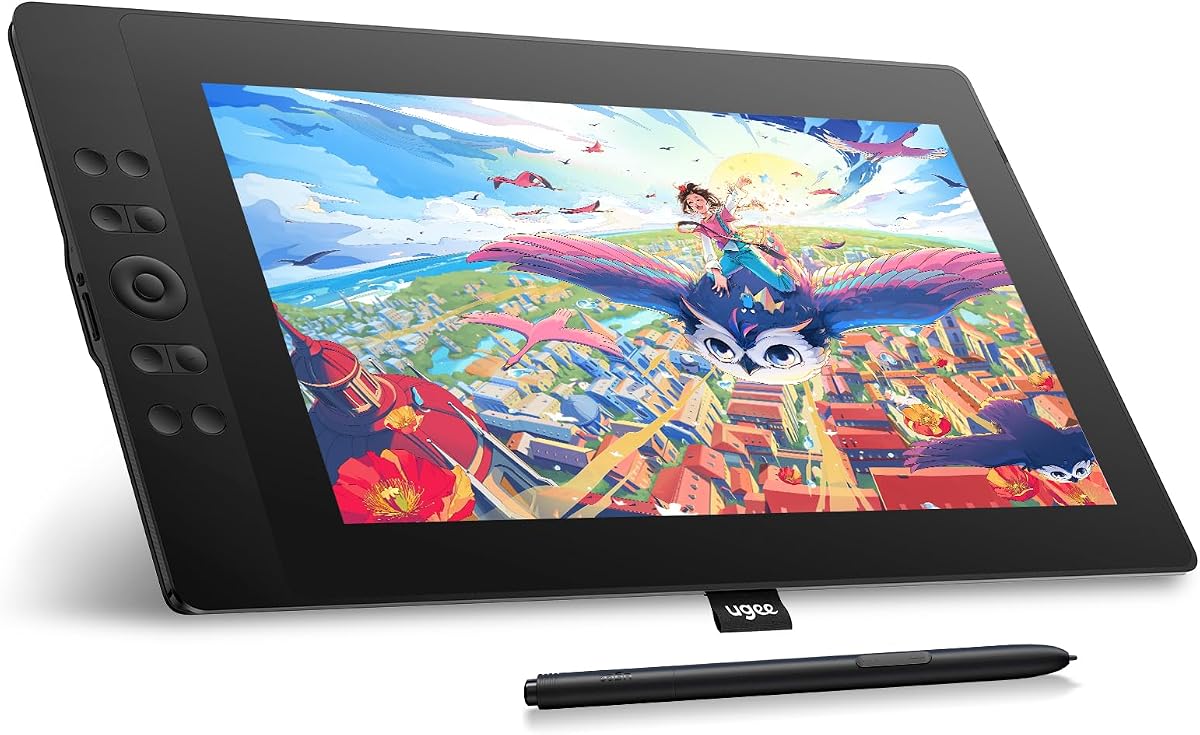


The XP-PEN Artist12 stands out as a top contender in the budget pen display category. With a strong rating of 4.4 stars, it offers a reliable mix of performance and affordability. Its 11.6-inch HD IPS display delivers vivid colors and sharp details that are essential for digital art and photo editing.
We may earn a commission when you buy through this link, at no additional cost to you.
This tablet features 8192 levels of pressure sensitivity, allowing for precise control over line weight and opacity. The battery-free stylus feels natural in hand, mimicking a traditional pencil with a hexagonal design for grip. Customizable shortcut keys and a touch bar streamline workflows in software like Photoshop and Clip Studio.
While it lacks standalone functionality and requires a host computer, the trade-off is justified by the price point. Some users may find the pre-installed screen protector affects touch clarity slightly, but it protects the surface effectively. Overall, the balance of features makes it a robust choice for students and beginners.
We recommend the XP-PEN Artist12 for artists seeking an entry-level pen display that does not compromise on core performance. Its broad compatibility with Windows and Mac systems ensures it fits into most existing setups. The included accessories like the glove and replacement nibs add extra value to the package.
The 72% NTSC color gamut ensures your artwork looks vibrant and true to life on screen, which is critical for professional color correction work.
Six customizable shortcut keys and a touch bar allow you to map common commands like zoom and brush size for faster creation.
We may earn a commission when you buy through this link, at no additional cost to you.
The VEIKK VK1200 V2 is a fantastic option for those on a tight budget who still want high-quality features. It uses full-laminated technology to reduce the gap between glass and screen, minimizing parallax for accurate cursor positioning. The anti-glare glass provides a paper-like feel that reduces eye strain during long sessions.
We may earn a commission when you buy through this link, at no additional cost to you.
Equipped with 8192 levels of pressure sensitivity and tilt recognition, this tablet responds well to dynamic brush strokes. The package includes two battery-free pens and a generous supply of replacement nibs, ensuring longevity without extra costs. Connectivity is simplified with a USB-C option for modern laptops, though HDMI is available for others.
Despite its low price, the build quality feels solid with an all-metal body. However, setting up the drivers might require some initial effort to customize the keys. It is also not a standalone device, requiring a computer connection for operation. These minor inconveniences are outweighed by the performance per dollar.
We suggest the VEIKK VK1200 V2 for beginners or hobbyists looking to start digital art without overspending. The frameless design adds a modern touch to any desk setup. Its compatibility with major operating systems and creative software makes it a versatile tool for students and casual artists.
Full-laminated technology integrates the glass and screen seamlessly, so your pen tip aligns precisely with the cursor on screen.
Getting two pens and 28 nibs in the box means you won't need to buy replacements for quite a while.
We may earn a commission when you buy through this link, at no additional cost to you.
The HUION Kamvas 13 Gen 3 brings premium features to a mid-range price, earning it the highest rating in this comparison. Its Advanced PenTech 4.0 provides 16384 levels of pressure sensitivity, allowing for extremely nuanced control. The 99% sRGB coverage ensures your colors match professional standards accurately.
We may earn a commission when you buy through this link, at no additional cost to you.
Canvas Glass 2.0 reduces glare and sparkle while maintaining screen clarity for a realistic drawing experience. The dual dial system offers tactile control over brush size and zoom, enhancing productivity. Color calibration data is included in the box, giving you confidence in color accuracy right out of the gate.
While it costs more than budget alternatives, the investment pays off in performance and build quality. You will need a capable host computer and potentially a powered USB hub for stable operation. It is not standalone, so you are tied to your workstation but get a robust tool in return.
This model is ideal for professionals or serious students who need reliable color accuracy and responsiveness. The ergonomic stand and streamlined cable management also contribute to a clean workspace. If you prioritize precision and high-end features, this is the top choice in the category.
With 16384 pressure levels, the pen detects the slightest changes in pressure, letting you create expressive strokes easily.
Factory calibration ensures Delta E is under 1.5, meaning your screen colors are incredibly close to the final output.
We may earn a commission when you buy through this link, at no additional cost to you.
The VEIKK VK1200 offers a no-frills experience tailored for students and entry-level users. Its 11.6-inch screen provides a comfortable workspace without taking up too much desk space. The 8192 pressure levels are sufficient for most digital drawing tasks, and the tilt function adds versatility to your strokes.
We may earn a commission when you buy through this link, at no additional cost to you.
Included accessories like the artist glove and extra nibs show that VEIKK understands the needs of daily users. The six shortcut keys can be mapped to common actions like undo and brush selection, speeding up your workflow. It is lightweight and portable enough to carry between classes or locations.
Setup is straightforward, though you will need to download drivers for full functionality. It relies on a computer connection, meaning it cannot function independently like a tablet. Despite these limitations, the value it offers at this price point is hard to beat for casual use.
We recommend this model for students learning digital art fundamentals. Its simplicity makes it easy to pick up without getting overwhelmed by complex settings. The durable build ensures it can handle daily use in a student environment without issues.
The glove keeps your hand from smudging the screen, while the extra nibs mean you don't have to worry about running out.
The 11.6-inch size fits well on smaller desks, making it a great choice for dorm rooms or home offices.
We may earn a commission when you buy through this link, at no additional cost to you.
This version of the VEIKK VK1200 offers significant upgrades over previous models, particularly in sensitivity and color. The 16384 pressure levels provide double the input data, allowing for smoother gradients and finer details. The 120% sRGB gamut enhances color vibrancy compared to standard displays.
We may earn a commission when you buy through this link, at no additional cost to you.
Full-laminated technology reduces parallax, ensuring your pen tip aligns perfectly with the cursor. The two included styluses offer backup options, and the metal back cover adds durability to the compact design. Weights just 1.78 lbs, it is easy to transport for working on the go.
Setup requires a computer connection via USB or HDMI. While it is a solid choice for digital drawing, you must be prepared for potential driver tweaks to achieve peak performance. It remains a budget-friendly option despite these premium upgrades.
We recommend this model for artists who need high sensitivity but cannot afford top-tier models. It is also a strong choice for those already in the VEIKK ecosystem looking for an upgrade path without breaking the bank.
The 16384 levels of pressure allow for nuanced line changes that are essential for professional illustration work.
With 120% sRGB coverage, your artwork displays richer colors that stand out more vividly on screen.
We may earn a commission when you buy through this link, at no additional cost to you.
The GAOMON PD1161 distinguishes itself with eight programmable shortcut keys, offering unmatched workflow customization. Its 11.6-inch FHD IPS screen delivers clear visuals with 72% NTSC color coverage. The pre-installed matte film reduces glare, giving a paper-like feel that improves comfort during long drawing sessions.
We may earn a commission when you buy through this link, at no additional cost to you.
With 8192 levels of pressure sensitivity and tilt support, this tablet handles complex digital painting well. It includes a battery-free stylus that feels natural and does not require charging. The included power adapter ensures stable performance even if your laptop cannot supply enough power via USB.
It requires connection to a PC or Mac, limiting use to desktop setups. Drivers are available for Windows and macOS, supporting most major creative apps. While the cable setup can be slightly bulky, the performance and key customization make it a strong contender for productivity.
We suggest this model for power users who rely heavily on shortcuts to speed up their workflow. It is also suitable for students needing a reliable tool for note-taking and design work in a classroom setting.
Eight customizable keys mean you can map almost any function directly to the tablet for instant access without keyboard shortcuts.
The pre-installed matte film reduces glare and adds texture that mimics traditional paper, helping with line control.
We may earn a commission when you buy through this link, at no additional cost to you.
The XPPen Artist 12 Pro Lite focuses on simplifying the connection process with its 3-in-1 cable design. It features a fully laminated display that eliminates parallax for accurate drawing. The unique Red Dial provides a quick way to adjust brush size or zoom without switching tools manually.
We may earn a commission when you buy through this link, at no additional cost to you.
With 8192 pressure levels and tilt support, this pen delivers natural and fluid strokes. The 11.6-inch screen is compact and lightweight, making it easy to set up in various locations. It works with Windows, Mac, and Linux, ensuring broad compatibility for different user needs.
Although it relies on an external computer, the single cable reduces clutter significantly. It is a versatile tool for both creative work and online education. The build feels solid but may not withstand heavy travel without a protective case.
We recommend this model for artists who value clean setups and quick access to controls. Its simplicity and portability make it a great backup or primary choice for digital illustrators working on a budget.
The 3-in-1 cable connects data, power, and video in one go, reducing cable clutter on your desk.
The Red Dial adds a tactile control option for zooming or brush sizing without needing keyboard shortcuts.
We may earn a commission when you buy through this link, at no additional cost to you.
The Artisul D16 offers a generous 15.6-inch working area, which is rare at this price point. Its full-laminated screen minimizes parallax for better accuracy. The 76% Adobe RGB color gamut provides vivid and accurate colors suitable for graphic design tasks. A quick dial adds convenient control over zoom and brush size.
We may earn a commission when you buy through this link, at no additional cost to you.
The battery-free stylus supports 8192 pressure levels for detailed strokes. It is compatible with major drawing software and systems. Being a refurbished unit means you get a premium screen for less, but you may face limited warranty coverage compared to new models.
You will need a computer with HDMI or USB ports to connect. The larger screen requires more desk space but offers better comfort for professional work. It is a cost-effective entry into larger displays.
We recommend this model for designers who need more real estate. If you are comfortable with refurbished electronics, this unit offers great value and performance for the price.
A 15.6-inch screen gives you more room to work on complex illustrations without feeling cramped.
This color space is vital for print design, ensuring your colors stay accurate across different mediums.
We may earn a commission when you buy through this link, at no additional cost to you.
The UGEE UE16 offers an exceptional 143% sRGB color gamut, which is a standout feature in this range. Its 16K pressure sensitivity ensures that strokes are precise and responsive. The full-laminated screen reduces parallax and provides a smooth drawing experience. It also supports Android devices for mobile connectivity.
We may earn a commission when you buy through this link, at no additional cost to you.
The pen features customized hotkeys for quick access to tools and is battery-free for convenience. Four color space options give you flexibility depending on your project requirements. The scroll wheel allows easy switching between preset functions without leaving your workflow.
Setup may require careful handling of cables, which are provided separately. It works with Windows, Mac, and Linux systems. Despite some minor driver issues, the hardware quality and color performance make it a compelling choice for artists.
We recommend this model for artists who prioritize color accuracy. Its support for multiple platforms makes it versatile for both desktop and mobile workflows. The high pressure sensitivity is a plus for detailed illustration.
With 143% sRGB coverage, your artwork looks rich and vibrant, ensuring fidelity across different output formats.
Support for Android means you can connect it to a compatible phone or tablet for work on the move.
We may earn a commission when you buy through this link, at no additional cost to you.
The RubensTab T11 Pro stands out because it does not require a computer to work. It is a standalone tablet with a built-in battery for up to 5 hours of continuous use. The 10.1-inch Full HD IPS screen offers sharp visuals and a comfortable viewing experience. Pre-installed apps make it ready to use immediately.
We may earn a commission when you buy through this link, at no additional cost to you.
The pressure-sensitive pen feels natural and requires no charging. Its portability makes it ideal for sketching on the go or for students in classrooms. You can also use it for note-taking and basic design tasks without being tethered to a desk.
While smaller than dedicated pen displays, its independence is a huge plus. It is compatible with Wi-Fi for online resources and cloud storage. However, performance may be limited for heavy software compared to a PC connection.
We recommend this model for mobile artists or note-takers who need a portable device. If you want a tool that works without a computer connection, this is your best choice in the budget category.
With no need for a PC and a built-in battery, you can take this device anywhere to sketch or work.
Pre-installed professional apps let you start drawing right out of the box without extra installation steps.
We may earn a commission when you buy through this link, at no additional cost to you.
Choosing a budget pen display involves balancing screen quality, pressure sensitivity, and software compatibility. This section breaks down the essential factors to consider before making your purchase to ensure you get the right tool for your needs.
Screen size typically ranges from 10 to 16 inches. A 13-inch display offers a good balance of workspace and portability. Higher resolution like 1920×1080 ensures crisp lines and better detail in your artwork.
Choose a size that fits your desk space and budget while providing enough room for creative freedom.
Most affordable models offer 8192 levels of pressure sensitivity, which is sufficient for most digital art. Higher levels like 16384 provide more nuance for shading and line variation. Look for tilt support as well for natural brush effects.
Ensure the pen supports pressure sensitivity to create dynamic strokes without needing a mouse.
A good pen display should cover at least 72% NTSC or 99% sRGB. Wide color gamuts ensure your artwork looks vibrant and true to life. Some models include factory calibration for better consistency.
Prioritize color accuracy if you work on projects intended for print or professional use.
Most devices connect via HDMI and USB-A, but newer models use USB-C for single-cable convenience. Check your computer's ports to avoid buying extra adapters. Android compatibility is a bonus for mobile workflows.
Choose a connection type that matches your existing hardware to simplify setup.
Drivers must be compatible with your OS and creative software like Photoshop or Clip Studio. Open-source drivers can be helpful for Linux users. Ensure the manufacturer provides regular updates.
Verify compatibility with your preferred apps to avoid workflow interruptions after purchase.
Metal bodies offer better durability than plastic. Lightweight designs are easier to transport between locations. A sturdy stand is essential for comfortable positioning during long sessions.
Look for a build that feels solid and includes a stand for ergonomic work.
Some tablets like the RubensTab work independently without a computer. Others require a PC. Standalone units offer more portability but less processing power. Connected models offer full desktop performance.
Decide if you need a portable standalone device or a powerful connected display.
Check if the pen, glove, and nibs are included. A one-year warranty is standard. Lifetime technical support can be valuable for beginners. Extra nibs are useful for long-term use.
Ensure the package includes necessary accessories to start working right away.
Begin by installing the latest drivers from the manufacturer's website before connecting the device to your computer. This ensures your system recognizes the pen and supports all features properly. Follow the setup guide to map shortcut keys to your preferred functions.
Calibrate the pen pressure in the settings menu to match your hand pressure. Test the pen by drawing a few strokes to ensure accuracy. Adjust the tilt settings if your software supports tilt functionality for smoother shading effects.
Clean the screen regularly with a soft cloth to remove dust and oils that can affect drawing feel. Store the device in a protective case when transporting to avoid scratches. Keep the pen nibs clean and replace them when they become worn for consistent performance.
Most pen displays require a computer connection for full functionality. Only specific models like the RubensTab T11 Pro operate standalone with built-in processors. Check the product specs before purchasing to confirm compatibility with your setup.
Yes, the majority of models listed support both Windows and macOS systems. Linux and Android support is available on select models like the UGEE UE16 and HUION Kamvas 13. Always check the product description for OS requirements.
Higher pressure sensitivity allows for more control over line thickness and opacity. It mimics the natural feel of traditional tools like pencils or brushes. Look for at least 8192 levels to ensure smooth transitions and expressive artwork.
Yes, these tablets are excellent for remote work and teaching. They allow you to write notes directly on screen for students to see. Many models support video conferencing apps like Zoom and Teams for live collaboration.
Laminated screens fuse the glass to the display, reducing the gap between pen and cursor. This minimizes parallax, making drawing feel more natural. Non-laminated screens have a slight offset that can affect precision.
Most packages include one pen, a glove, and spare nibs. The number of nibs varies by model. Always check what is included in the box so you have everything needed to start drawing immediately.
Pen nibs typically last several months depending on usage frequency. You can replace them easily when they show wear. Most devices include multiple nibs to extend their usable life.
Not necessarily. Budget models like the VEIKK VK1200 offer excellent value with solid performance. High-end models may have better color accuracy but cost significantly more. Choose based on your specific needs and budget.
The XP-PEN Artist12 and VEIKK VK1200 V2 stand out as top value options for beginners. For professionals seeking advanced features, the HUION Kamvas 13 Gen 3 delivers superior color accuracy and sensitivity.
Prioritize screen size and pressure levels that match your workflow needs. Ensure the connectivity options fit your computer setup before buying. Accessories like gloves and nibs add value to the overall package.
Remember that prices fluctuate often, so check current listings for the best deals. Investing in the right tool now can save time and frustration later. Choose the model that best supports your creative growth.