
NIMO 15.6 AI Creator Laptop
5.0Editor score
Ryzen 5 6600H CPU
16GB DDR5 RAM
Affordable Pricing
Find the best laptops for Lumion with our expert comparison of top models featuring powerful CPUs, GPUs, and large displays for smooth 3D rendering performance.
Choosing the right laptop for Lumion requires balancing processing power with visual fidelity. You need a machine that handles complex 3D scenes without lag while rendering high-resolution outputs efficiently for professional workflows.
We compared ten top models based on CPU strength, GPU capabilities, RAM capacity, and display quality. Our analysis focuses on real-world performance for architects, designers, and students needing reliable 3D modeling tools.
Each pick highlights specific strengths like battery life, portability, or raw speed. Prices fluctuate often so check current listings before buying to ensure you get the best value for your specific project requirements today.
5.0Editor score

4.7Editor score
4.8Editor score
This table compares key specifications across all ten models to help you quickly identify which device meets your specific rendering and portability needs for Lumion workflows.


This NIMO laptop stands out as a top contender for Lumion users seeking a balance of screen size and processing power. With a 4.7 rating, it offers reliable performance for medium-complexity 3D scenes and multitasking workflows without breaking the bank.
We may earn a commission when you buy through this link, at no additional cost to you.
The Ryzen 7 8745HS CPU delivers robust multitasking capabilities, allowing you to run Lumion alongside other design tools smoothly. The 32GB DDR5 RAM ensures that large project files load quickly and remain responsive even when switching between applications frequently during long design sessions.
While the integrated Radeon 780M graphics are capable for light workloads, they may struggle with extremely high-fidelity real-time rendering compared to dedicated GPUs. However, the 17.3 inch display provides ample workspace for viewing detailed models and managing complex interface layouts effectively.
This machine is ideal for students and professionals who need a large screen and strong CPU for daily tasks. We recommend it for those prioritizing screen real estate and memory over raw GPU power for final high-resolution exports.
The 17.3 inch display offers 30 percent more space than standard 15.6 inch models, making it easier to manage multiple windows in Lumion.
With 32GB of fast DDR5 memory and a 1TB SSD, you can store extensive asset libraries without worrying about immediate capacity constraints.
We may earn a commission when you buy through this link, at no additional cost to you.
The NIMO 15.6 AI Creator Laptop earns a perfect 5.0 rating for its exceptional value proposition. It provides essential performance features needed for entry-level Lumion work at a price that is accessible to many students and freelance designers.
We may earn a commission when you buy through this link, at no additional cost to you.
Its Ryzen 5 6600H processor handles daily tasks and moderate rendering jobs with ease. The 16GB DDR5 RAM supports smooth multitasking, allowing you to keep browser tabs and design software open simultaneously without significant slowdowns or latency issues.
The 512GB SSD is fast but may fill up quickly with large texture libraries and project files. Fortunately, the system allows upgrades so you can expand storage later as your portfolio grows and demands more space for archival assets.
This laptop is perfect for those starting their journey in 3D modeling who need a reliable machine without overspending. It balances cost and performance effectively for basic Lumion usage and general productivity tasks.
Despite the lower cost, the 6-core CPU delivers enough power for learning Lumion basics and rendering simple architectural visualizations efficiently.
Dual SO-DIMM slots allow you to increase RAM up to 64GB, ensuring the machine remains relevant as your project complexity increases over time.
We may earn a commission when you buy through this link, at no additional cost to you.
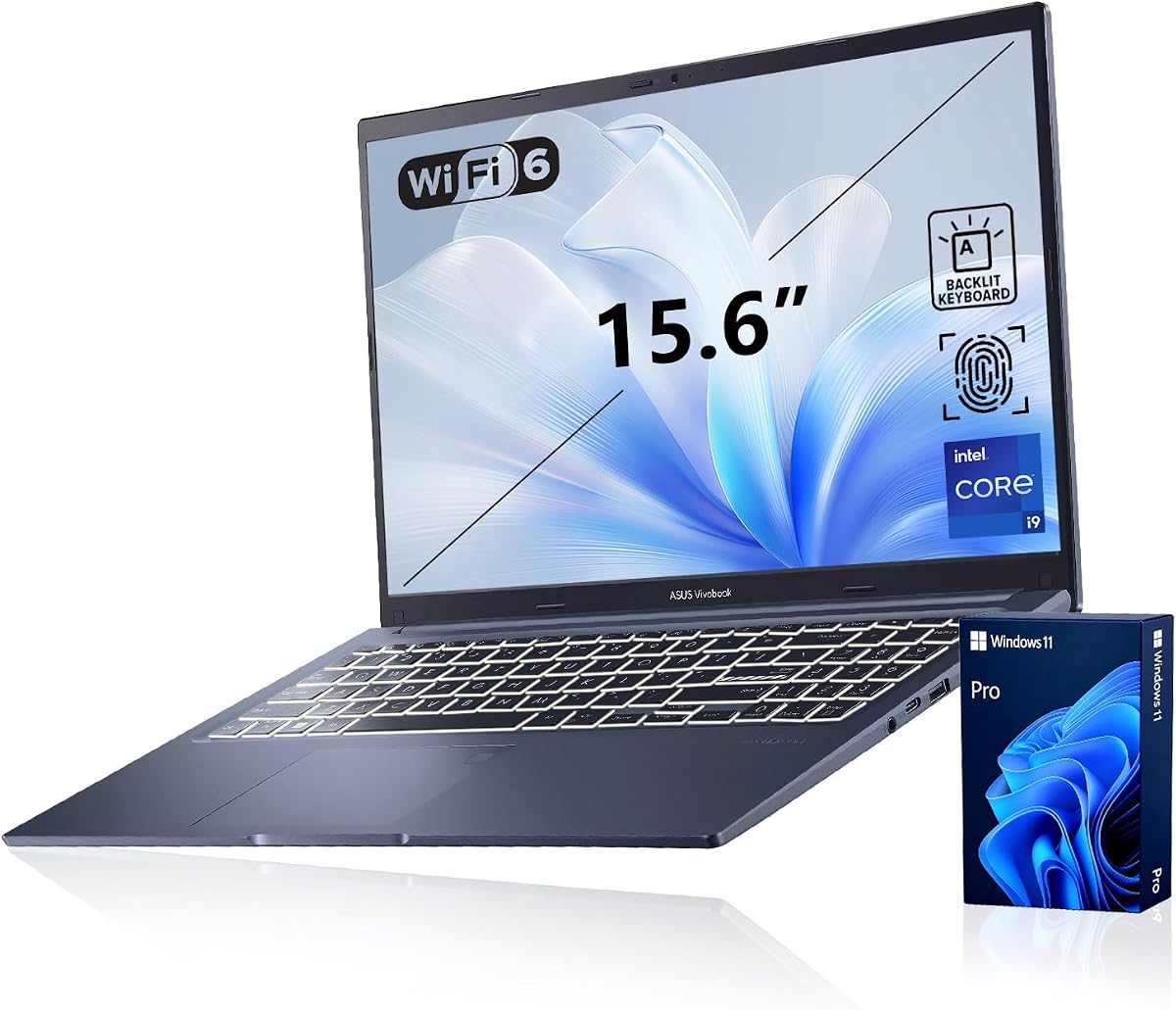
The ASUS Vivobook with Core i9 offers elite-level computing power suitable for demanding creative workflows. It receives a perfect 5.0 rating for its ability to handle complex simulations and heavy multitasking that lower-end machines might struggle with effectively.
We may earn a commission when you buy through this link, at no additional cost to you.
The 14-core i9 processor ensures that CPU-intensive tasks like simulation and background rendering happen rapidly. With options to configure up to 48GB of RAM, this laptop can accommodate massive project files without performance bottlenecks during critical work periods.
While it lacks a dedicated GPU for graphics acceleration, the CPU strength compensates for many general modeling tasks. The inclusion of Windows 11 Pro adds enterprise features that some professional users may require for security and management purposes.
This device is best suited for professionals who prioritize raw processing speed and system stability. It is an excellent choice for those who need a powerful workstation that can be customized to specific high-performance needs.
The Core i9 13900H leads in raw performance, making it ideal for complex computations and AI-enhanced creative software tasks efficiently.
You can choose from various RAM and SSD configurations to tailor the laptop to your specific budget and performance requirements exactly.
We may earn a commission when you buy through this link, at no additional cost to you.
The NIMO 17.3 AI Creator laptop brings a large screen to a budget-friendly package. It provides a comfortable viewing area for design work while maintaining a light weight that makes it easy to transport between locations easily.
We may earn a commission when you buy through this link, at no additional cost to you.
Equipped with a Ryzen 5 6600H and 16GB RAM, it handles standard productivity tasks and light rendering smoothly. The 17.3 inch display offers significant real estate for arranging toolbars and viewing detailed architectural models during editing sessions.
While 512GB of storage is standard, users with large asset collections may need external drives sooner. The integrated graphics are sufficient for basic work but may require optimization for higher fidelity real-time previews in complex scenes.
This laptop is a great option for those who prioritize screen size and portability. It serves well for students and professionals needing a portable workstation for presentations and basic 3D modeling tasks on the go.
Despite the large 17.3 inch screen, the device weighs under 2.1kg allowing you to carry it easily in standard backpacks for daily commutes.
The Full HD resolution ensures clear visuals for work documents and design previews making split-screen multitasking significantly more efficient daily.
We may earn a commission when you buy through this link, at no additional cost to you.
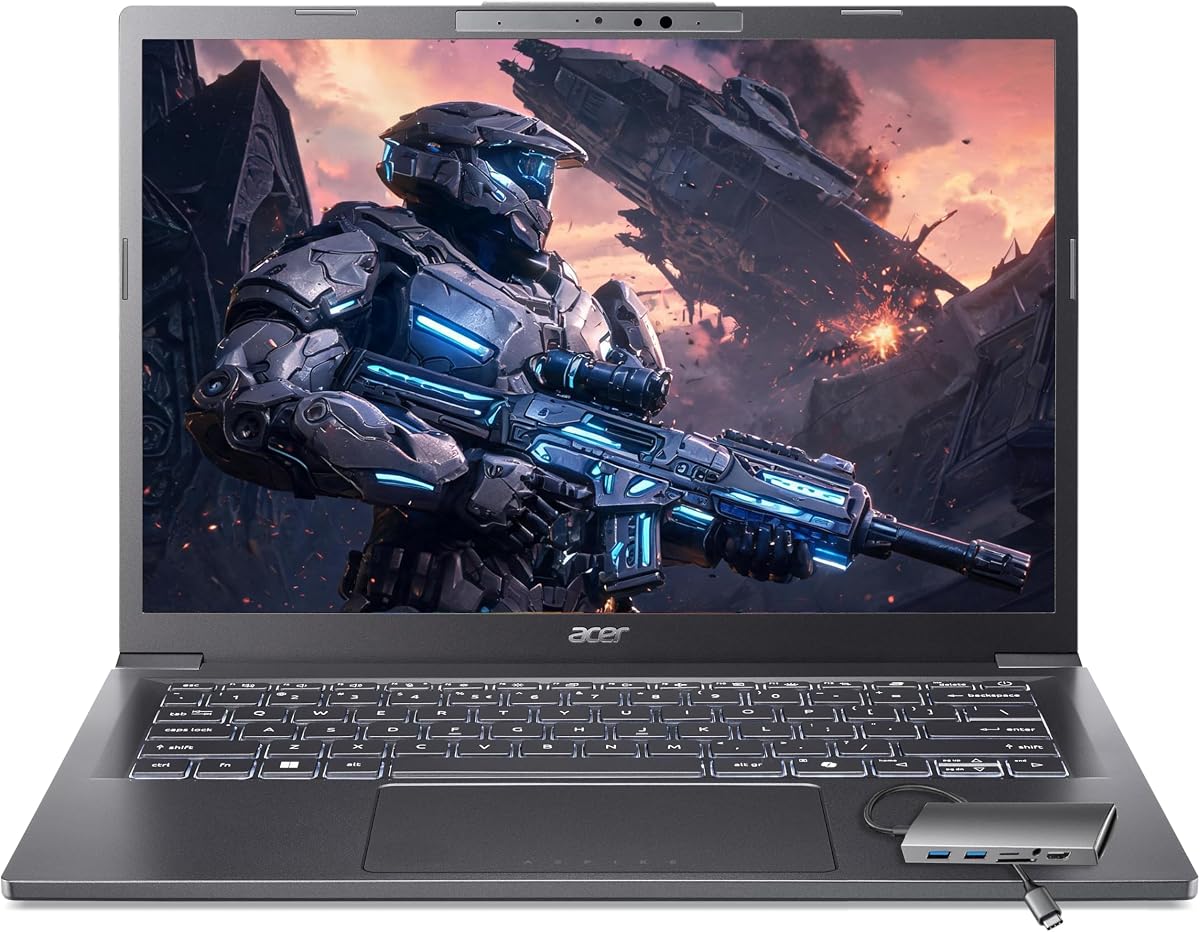
The Acer Aspire 2026 introduces next-generation AI acceleration with its Intel Ultra 7 processor and dedicated NPU. This model scores high for efficiency and local AI processing capabilities which can assist with creative tasks and workflow automation effectively.
We may earn a commission when you buy through this link, at no additional cost to you.
With 32GB of LPDDR5X RAM and 2TB storage, it offers ample resources for handling large project files and multitasking. The touchscreen adds an intuitive layer for photo retouching and direct interaction with design elements in supported applications.
The main tradeoff is the 14 inch screen size which may feel cramped for complex multi-panel layouts in Lumion. However, the ultra-portable design makes it an ideal secondary machine for travel or client meetings on site.
This laptop is best for professionals who value AI features and portability. It works well as a high-performance companion device that balances power with easy transport for frequent travelers.
The dedicated NPU handles AI workloads like background blur and local Copilot features efficiently without draining battery or slowing performance.
The intuitive touchscreen enables precise editing and direct manipulation of design elements offering a more interactive user experience.
We may earn a commission when you buy through this link, at no additional cost to you.
This ASUS Vivobook bundle stands out for its thermal management solution which helps maintain peak performance during intensive tasks. The inclusion of an external cooler addresses common overheating issues found in thin laptops under sustained CPU loads effectively.
We may earn a commission when you buy through this link, at no additional cost to you.
The Core i9 processor and 32GB RAM deliver powerful computing capabilities for heavy rendering and multitasking. This combination ensures that you can run demanding software without worrying about thermal throttling affecting your productivity or project deadlines.
While the RAM is DDR4 rather than DDR5, the overall system balance remains strong for professional use. The 15.6 inch display provides a standard workspace that fits well in most bags while offering good clarity for design work.
This model is ideal for users who need sustained performance and worry about heat. The added cooling component makes it a reliable choice for long work sessions or rendering tasks without needing a bulky desktop setup.
The bundled cooler ensures the i9 processor maintains peak frequency for longer durations solving common overheating complaints of high-performance laptops.
Comprehensive I/O suite eliminates extra dongles with features including USB Type-C and HDMI for 4K external displays for expanded setups.
We may earn a commission when you buy through this link, at no additional cost to you.
The HP 17 inch Business Laptop offers a robust solution for professionals needing a large screen and office tools. It features a full-size keyboard with a numeric keypad which is useful for data entry and calculations alongside design work.
We may earn a commission when you buy through this link, at no additional cost to you.
Powered by a Ryzen 5 CPU and 16GB RAM, it handles general productivity and light rendering tasks comfortably. The anti-glare display helps reduce eye strain during long sessions working on detailed architectural plans or spreadsheets.
While it lacks high-end GPU power, it meets the needs of users focusing on documentation and presentation. Office 365 for Web is preloaded enabling seamless document creation and sharing without additional software purchases.
This device is a solid choice for business professionals and architects who prioritize screen real estate and input ergonomics. It provides a stable platform for daily administrative tasks and moderate 3D modeling needs.
The 17.3 inch anti-glare display provides vivid color and sharp details perfect for multitasking and reducing eye strain during long work.
Preloaded with Office 365 for Web, you can create and share documents instantly without needing to install additional suites on the system.
We may earn a commission when you buy through this link, at no additional cost to you.
The ASUS Vivobook 14 is a basic option for those with minimal requirements. It offers a thin and portable design suitable for students or light users who need to browse documents and run simple applications effectively.
We may earn a commission when you buy through this link, at no additional cost to you.
With 4GB RAM and a Celeron processor, it is not suitable for heavy 3D rendering or multitasking. However, it works well for web-based design tools and basic tasks where high processing power is not a primary concern.
The 64GB storage is limited but supplemented by cloud options which help expand capacity. This model is best used as a secondary device for travel or casual browsing rather than primary professional work.
This laptop is a last resort for budget buyers who can sacrifice performance. It serves well for non-technical tasks or as a backup machine when you do not need complex rendering capabilities.
Weighing just 2.87 lbs and 0.71 inch thin, this laptop offers up to 10 hours of battery life for work and travel easily.
Includes USB-C, HDMI and audio jack for convenient everyday connectivity and allows you to connect to external displays or accessories.
We may earn a commission when you buy through this link, at no additional cost to you.
The ASUS ROG Strix G16 is a powerhouse designed for gaming and intensive rendering tasks. Its dedicated RTX GPU makes it one of the few laptops here capable of smooth real-time rendering in high-fidelity 3D environments.
We may earn a commission when you buy through this link, at no additional cost to you.
With an i7 processor and 16GB DDR5 RAM, it handles heavy computational loads effortlessly. The 165Hz display ensures smooth visuals which can be beneficial for dynamic design previews and interactive presentations during client meetings.
While it is heavier and less portable than business ultrabooks, the performance trade-off is necessary for demanding graphics work. The advanced cooling system keeps the hardware stable even under maximum load for extended periods.
This laptop is the best choice for users needing GPU acceleration for Lumion. It is ideal for professionals or enthusiasts who require top-tier rendering performance and are willing to carry a slightly larger device.
NVIDIA GeForce RTX 5060 with DLSS 4 delivers high frame rates and visual fidelity essential for smooth real-time 3D rendering workflows.
Tri-fan technology and liquid metal cooling keep the system quiet and cool allowing sustained peak performance without thermal throttling.
We may earn a commission when you buy through this link, at no additional cost to you.
The HP OmniBook 3 offers a large 17.3 inch display at an entry-level price point. It is suitable for basic computing and lightweight design tasks where budget is the primary constraint for purchase decisions.
We may earn a commission when you buy through this link, at no additional cost to you.
The Ryzen 3 processor and 8GB RAM can handle light applications but may struggle with complex 3D scenes. It works best for learning basics or simple presentations where heavy rendering is not required.
Storage is decent at 512GB SSD but RAM may limit multitasking capacity significantly. It is a viable option for students who need a large screen for studying and basic web-based design work without high costs.
This laptop serves well as a budget-friendly secondary device. For heavy Lumion work, you will need to lower quality settings or rely on cloud rendering services to compensate for hardware limitations.
Enjoy up to 14 hours of battery life with HP Fast Charge restoring 50 percent in approximately 45 minutes for quick top-ups on the go.
Full HD IPS display ensures 178-degree wide-viewing angles and crisp visuals for clear viewing of design elements from various angles.
We may earn a commission when you buy through this link, at no additional cost to you.
Selecting a laptop for Lumion involves evaluating several key components that directly impact rendering speed and workflow smoothness.
The Central Processing Unit is crucial for handling geometry calculations and scene assembly. A high-core count processor like an i7 or Ryzen 7 ensures that complex models load faster and respond quickly to edits during active design phases.
Prioritize CPUs with high boost clocks and multiple cores to maintain responsiveness in large-scale architectural projects.
Random Access Memory allows you to multitask between Lumion, browsers, and other design tools without slowdowns. For professional work, 32GB or more is ideal to prevent bottlenecks when handling large texture files and extensive asset libraries.
At minimum, ensure your laptop has 16GB of RAM to run Lumion smoothly alongside standard office applications.
While integrated graphics can handle basic modeling, dedicated GPUs provide the necessary power for real-time rendering and high-quality output. Look for NVIDIA RTX series cards to enable features like ray tracing and DLSS for better visual fidelity.
If you cannot choose a dedicated GPU, ensure the integrated graphics are modern and support OpenGL features required by the software.
Solid State Drives (SSDs) drastically reduce boot times and project loading speeds. NVMe PCIe 4.0 drives are recommended for quick asset streaming and saving large render outputs without waiting for file transfers to complete.
Avoid older HDDs or eMMC storage as they will slow down your overall workflow significantly during frequent save operations.
A large, high-resolution screen allows you to see fine details and manage complex toolbars without constantly zooming or scrolling. 17-inch displays offer more workspace but 15-inch models are more portable for travel or client meetings.
Ensure the screen has accurate color reproduction and high brightness to view renderings clearly in various lighting conditions.
If you need to work on-site or carry your machine to presentations, weight and size become critical factors. Ultrabooks under 4 pounds are easier to carry but may sacrifice cooling or battery life for thinness.
Choose a balance that fits your daily commute and workspace needs without compromising too much on cooling or performance.
Multiple USB ports and HDMI connections are essential for attaching external monitors, drawing tablets, or hard drives. Ensure your laptop has at least one USB-C port with video output to simplify your setup at different work locations.
Good Wi-Fi and Bluetooth standards ensure seamless connections to cloud services and peripherals throughout your workday.
Long battery life allows you to work away from outlets for extended periods. While heavy rendering drains power quickly, efficient processors and large battery capacities can help sustain basic modeling and viewing tasks.
Look for models with at least 8 hours of general use life if you frequently work in locations without power access.
To maximize performance, always update your graphics drivers regularly to ensure compatibility with the latest rendering features. Keep your software and operating system current to benefit from performance patches and security updates that maintain system stability.
Use external cooling pads when working on intensive tasks to prevent overheating. Ensure proper ventilation by keeping vents clear and avoiding soft surfaces like beds where heat can build up around the chassis and throttle performance.
Manage your storage by regularly archiving old project files to external drives or cloud services. This prevents internal storage from becoming cluttered and ensures you have enough space for new assets and high-resolution renders.
While integrated graphics can run basic tasks, a dedicated GPU significantly improves real-time rendering quality and speed. For professional work, an RTX card is recommended to handle complex lighting and high-resolution textures efficiently.
At least 16GB is needed for smooth operation with moderate projects. For large-scale architectural designs, 32GB or more is recommended to prevent slowdowns when multitasking between multiple applications.
You can run Lumion on battery, but performance will throttle to save power. It is best to keep the laptop plugged in during heavy rendering sessions to maintain consistent frame rates and speeds.
A 17-inch screen offers more workspace for toolbars and detailed views, which helps with complex editing. However, 15-inch models are more portable. Choose based on whether you prioritize workspace or mobility.
NVMe SSDs provide the fastest read and write speeds for loading assets quickly. Aim for PCIe 4.0 drives to minimize load times and ensure smooth access to large texture libraries and project files.
Most models allow RAM upgrades if they have open slots. Check if the specific model has soldered memory before purchasing to ensure future expandability for larger project needs.
Choosing the right machine depends on your specific workflow needs and budget constraints. The top picks offer a range of options from budget-friendly workstations to high-performance machines capable of handling complex rendering tasks.
Prioritize CPU power and RAM capacity for smooth editing and multitasking. For high-quality output, a dedicated GPU or strong integrated graphics will ensure you can visualize detailed designs without lag.
Always check current availability and pricing as deals change frequently. Use this guide to narrow down the models that fit your requirements and ensure you invest in a laptop that supports your professional growth.